


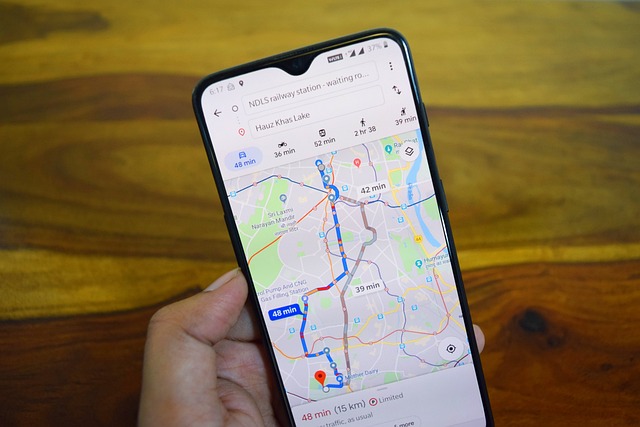
Google Maps for travelers is one of the most useful tools for trip planning and navigation abroad. You can save hotels and restaurants, build a route, download a map for offline use, check public transportation, and share your location with family members.
Google Maps for Travelers: What Can You Do with the App?
Google Maps is much more than a navigation app. Travelers can use it during the planning stage, throughout the vacation, and even to revisit places they loved.
- Search for hotels, restaurants, synagogues, attractions, and shops.
- Save places in lists by city or day of the trip.
- Get driving, walking, and public transportation routes.
- Add multiple stops to a single route.
- Download offline maps before the flight.
- Share live location or trip progress.
- Check opening hours, reviews, and photos.
How Can Travelers Download an Offline Map on Google Maps?
An offline map allows navigation even without a signal or data package. It is advisable to download it at home or in a hotel using Wi-Fi, rather than waiting until you’re stuck without internet.
- Open the Google Maps app.
- Click on the profile picture or the letter representing the account.
- Select “Offline maps.”
- Click on the option to choose your own map.
- Move and zoom the frame until it covers the travel area.
- Click “Download.”
The file size depends on the selected area and level of detail. On a trip between several cities, you may need to download more than one map.
What Works in Offline Maps?
When the entire route is within the downloaded area, you can get driving navigation even without an internet connection. However, live information such as traffic congestion, blockages, and real-time changes may not appear. Public transportation, walking, and cycling routes are not always available in offline mode. Therefore, it is recommended to save important addresses and screenshots in advance.
How to Save Places on Google Maps?
Saving places saves time and allows you to see on the map all the points that interest you.
- Search for the place name or click on it on the map.
- Click “Save.”
- Choose an existing list or create a new one.
- Add a short note if needed, for example, “Dairy restaurant near the hotel.”
You can prepare a separate list for each destination, such as “Rome 2026,” and divide it into hotel, food, attractions, and shopping. You can also share the list with other travelers.
Google Maps for Travelers: Planning a Trip Route
For efficient planning, start from the hotel and save all desired places. Then check which points are in the same area and connect them to the same day. This is how you can avoid unnecessary trips from one side of the city to the other. It is recommended to check the route time at the hour you plan to leave, as traffic congestion and transport schedules vary throughout the day.
Adding Multiple Stops to the Route
- Select a destination and click on “Route”.
- Open the options menu.
- Choose “Edit Stops” or “Add Stop”.
- Add the desired locations.
- Drag the stops to change the order.
Google allows you to add multiple stops to a driving route, but it does not always arrange them in the most efficient order automatically. Check yourself if changing the order shortens the journey.
Google Maps and Public Transport Abroad
In many cities, you can see metro lines, buses, trains, and trams. The app usually displays departure time, number of stops, walking time, and required transfers. The information is not perfect everywhere. Works, strikes, and temporary changes may not be updated immediately, so it is advisable to also compare with the official local transport app.
- Check if you need to purchase a ticket in advance.
- Pay attention to the direction of travel and the name of the final station.
- Ensure when the last trip of the night departs.
- Save the hotel address in the local language.
How to Share Location on Google Maps?
Location sharing can help a family that splits up during the trip or someone who wants to update when they will arrive at the hotel.
- Open Google Maps and click on the profile picture.
- Select “Location Sharing”.
- Choose whom to share with and for how long.
- When finished, return to the sharing screen and click on stop.
During navigation, you can also share the trip progress. Sharing ends when you reach the destination or stop navigation. Share location only with people you know and trust.
How to Send a Point or Address?
Click on an existing place or long press on the map to place a pin. Then open the place card and click on “Share”. You can send the link via WhatsApp, email, or other apps. Instead of telling the driver “near the big square”, send an exact pin. Still, before the trip, ensure the point is at the correct entrance to the hotel, parking lot, or terminal.
How to Find Kosher Restaurants and Synagogues?
You can search for phrases like “Kosher restaurant” or “Synagogue”, but it is not advisable to rely solely on the search result. Information about kosher certification and prayer times may be outdated or incorrect. Check recent reviews, photos, the official website, and information from the local Jewish community. For kosher certification, ensure valid certification and supervision directly with the establishment.
How to Choose a Hotel Using Google Maps?
Before booking a hotel, check the actual location and not just the term “city center.” Activate walking routes to important places for you and check nearby transportation stations.
- Distance from the center and attractions.
- Travel time to the airport.
- Public transportation in the evening hours.
- Supermarkets, synagogues, and restaurants in the area.
- Whether the route includes a steep climb or a difficult-to-cross road.
Street View, when available, can help understand what the surroundings look like and where the hotel entrance is located.
Common Mistakes When Using Google Maps Abroad
- Not downloading the map in advance: Then discovering there’s no reception exactly when you need to navigate.
- Choosing a place with a similar name: Check the city, address, and photos before departure.
- Ignoring closing times: Online opening hours may change during holidays.
- Relying only on driving time: You need to add parking, walking, and security checks.
- Traveling on an unsuitable route: Check tolls, restricted roads, and emission zones.
- Not updating offline maps: Downloaded maps require periodic updates.
Tips for Travelers Using Google Maps Safely Abroad
- Install the app and update it before the flight.
- Download offline maps using Wi-Fi.
- Save the hotel, airport, and important places.
- Take a portable charger and don’t reach the end of the day without a battery.
- Do not type a destination while driving.
- Check road laws, tolls, and parking in the country.
- Also keep the address written down in case the phone doesn’t work.
Before heading to the airport, it’s worth reviewing things you must check before the flight.
Frequently Asked Questions About Google Maps
Does Google Maps work without the internet?
Yes, if you have downloaded the relevant area in advance. Driving navigation can work on a downloaded map, but live information and certain navigation methods will be limited.
How do I see places I’ve saved?
Go to the “Saved” or “You” tab, depending on the app version, and select the desired list.
Can I share a list of places?
Yes. You can open the list and send a link to additional travelers, and even allow collaboration in some options.
Can I add multiple destinations to a route?
Yes, in suitable travel routes you can add several stops and change their order.
Are the opening hours on Google always correct?
No. Businesses can change hours, and during holidays the information may differ. Before a special trip, it is recommended to verify with the website or business. With a little preparation, Google Maps for travelers can turn any trip abroad into a smoother, less stressful experience.
Want to find more deals and travel updates? Hunt for the best flight deal using our search engine, continue reading on the Flight Hunter website, and join our WhatsApp group.


